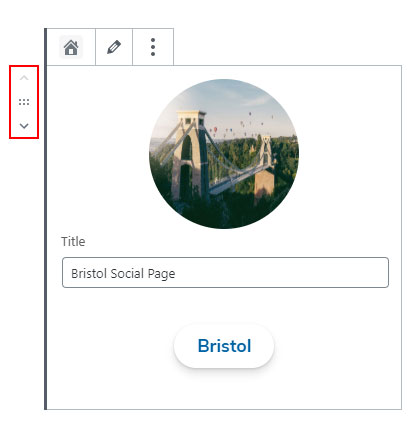
# Social CTA's
This block groups Social CTA blocks that consist of an image, a heading and a button and it's used to generate the following design:

Note: The Social CTA's block comes with no background colour, so to recreate the example shown above you will need to nest the Social CTA's block inside a Group block with a light blue background colour.
# Adding the block to a page
To add a Social CTA's block:
- Add or edit a page that uses the Gutenberg editor (e.g. Page or Post)
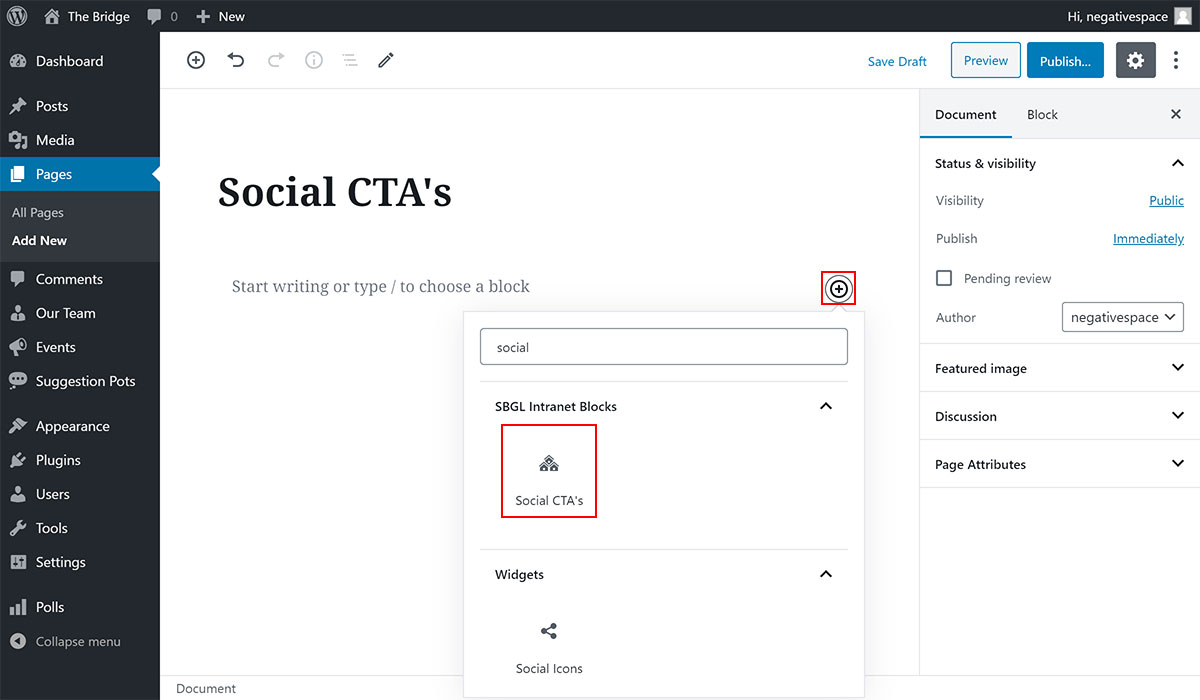
- Click to add a Gutenberg block (more on how to add a Gutenberg block can be found here)
- Find the block with the name Social CTA's (highlighted below) and,
- Click on it to add it
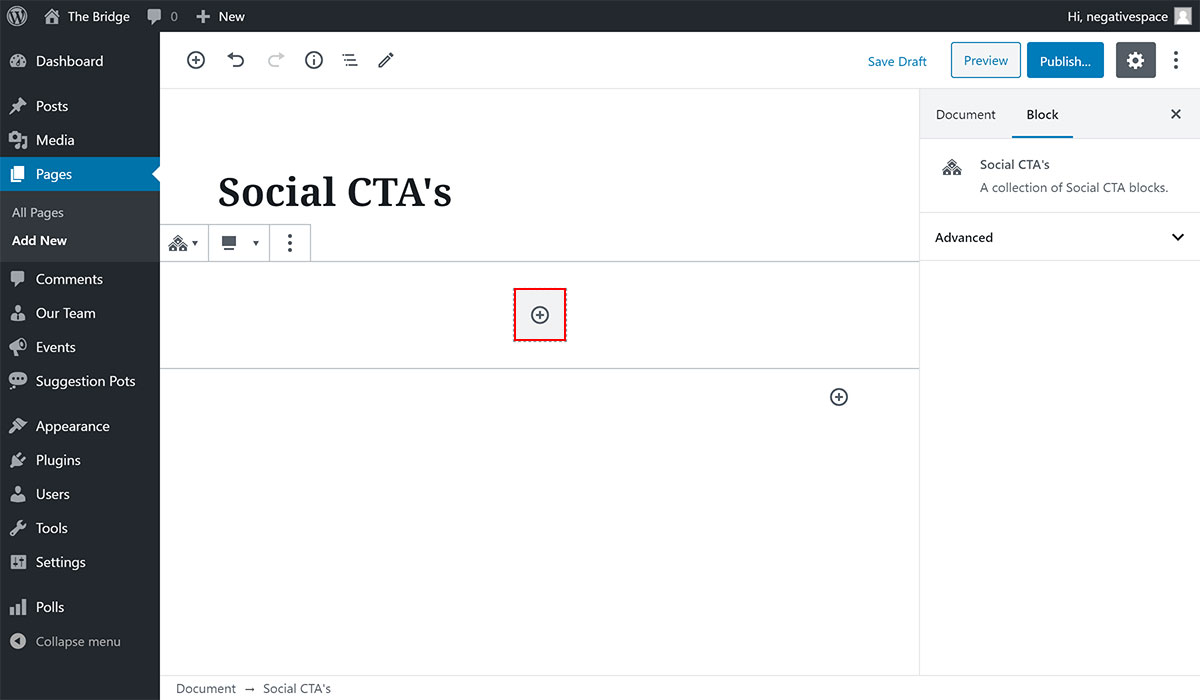
Once you add the Social CTA's block you can start adding each individual Social CTA block by clicking on the plus button highlighted below.
# Social CTA block configuration options
Each nested Social CTA block comes with the following configuration options:
# Image
Each Social CTA block features a circular image at the top. You can choose upload any image to use in that section (doesn't have to be circular) by either clicking on the Upload button (highlighted below) and adding a new image or by clicking on the Media Library (highlighted below) button and using from one of the existing images in the media library.
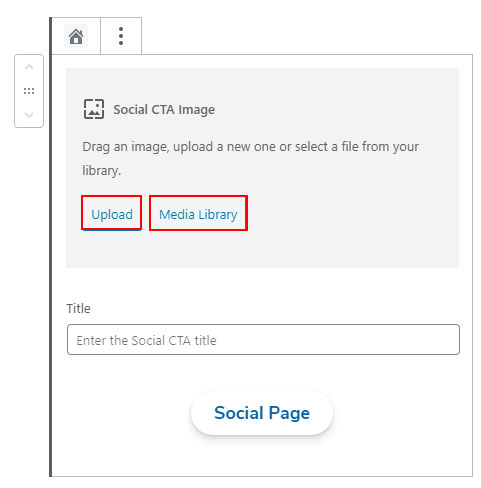
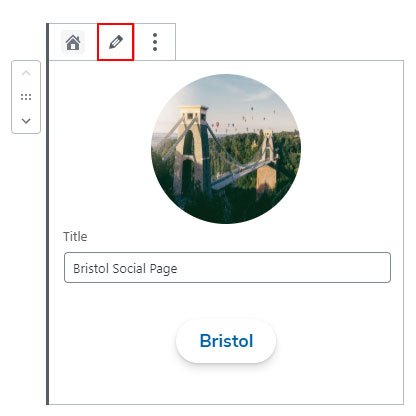
To edit the Social CTA image, click on the pencil icon (highlighted below) and follow the instructions to upload a new image or use an existing one from the Media Library.
# Title
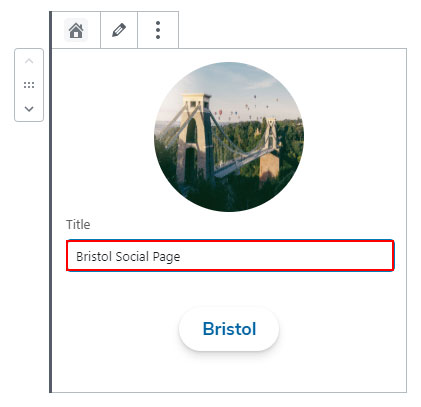
Add or edit the Social CTA title by filling in the field highlighted below.
# Button
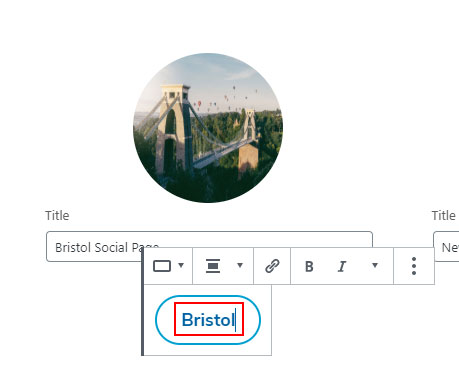
Each Social CTA block comes with a button link. To change the button link text, simply type inside the button shown below.
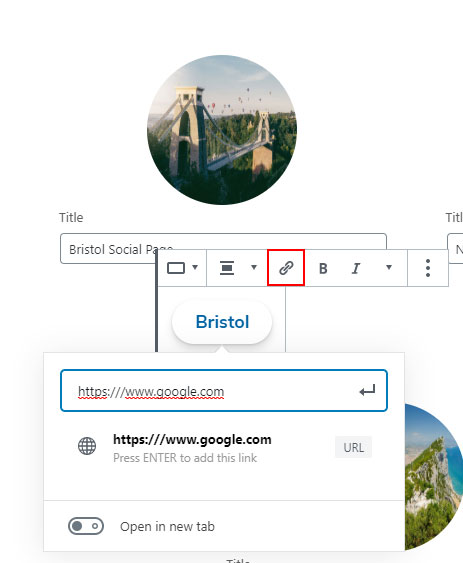
Click on the link button (highlighted below) to set or change the URL that the button links to.
# Reordering the Social CTA blocks
You can change the position of a Social CTA block inside the Social CTA's block by using the control highlighted below.