
# File download
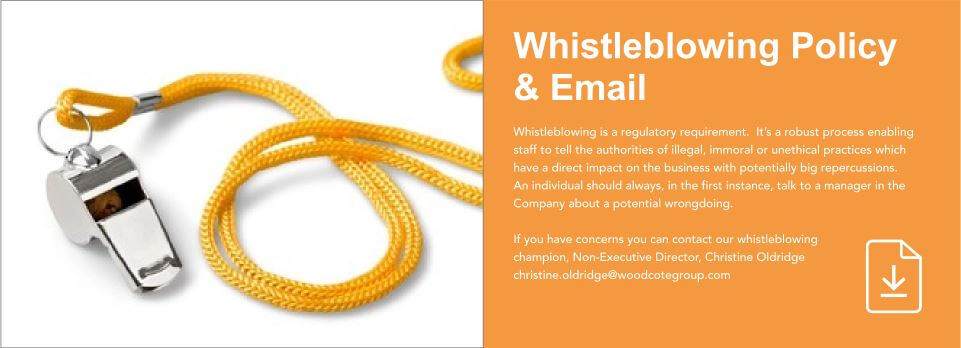
This is a custom Gutenberg block that generates a file link with an icon and with optional text, e.g.:


# Adding the block to a page
To add a File download block:
- Add or edit a page that uses the Gutenberg editor (e.g. Page or Post)
- Click to add a Gutenberg block (more on how to add a Gutenberg block can be found here)
- Find the block with the name File download (highlighted below) and,
- Click on it to add it

# Choosing a file
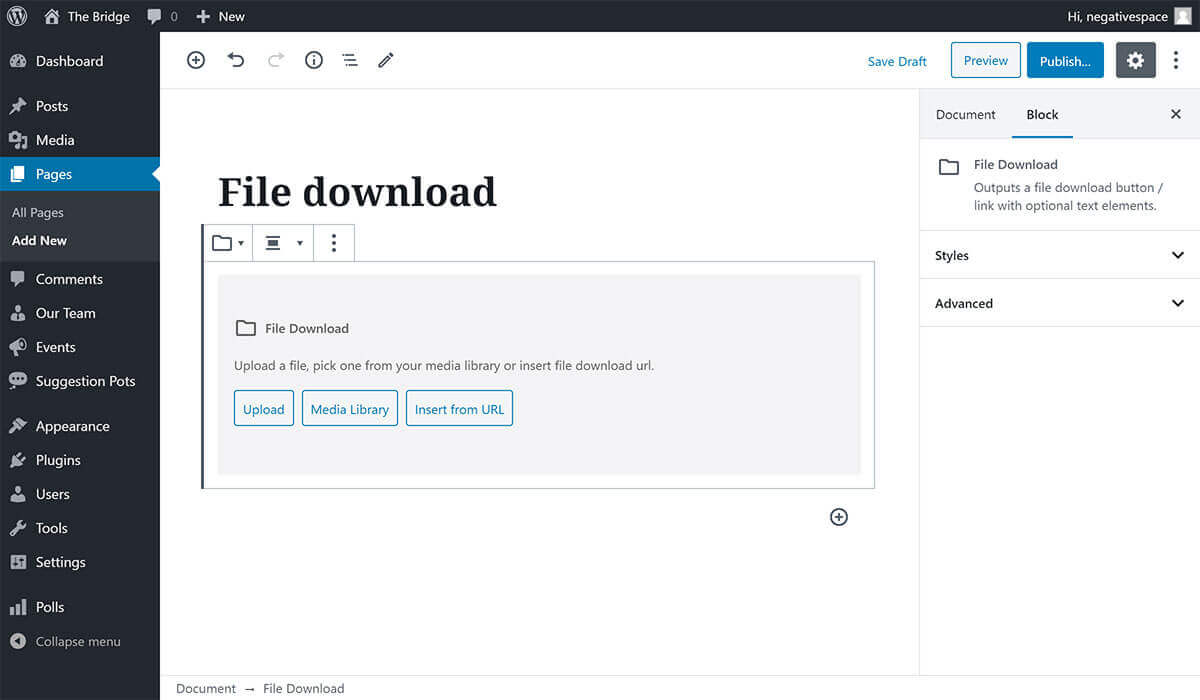
Once you add the block you will be prompted to choose a file by either uploading a new one, choosing one from the Media Library or inserting one from a URL as shown below.
# Customising the block
Once you've selected a file, you will be presented with all the configuration options for that block which are explained in detail in the following sections.
# Adding text
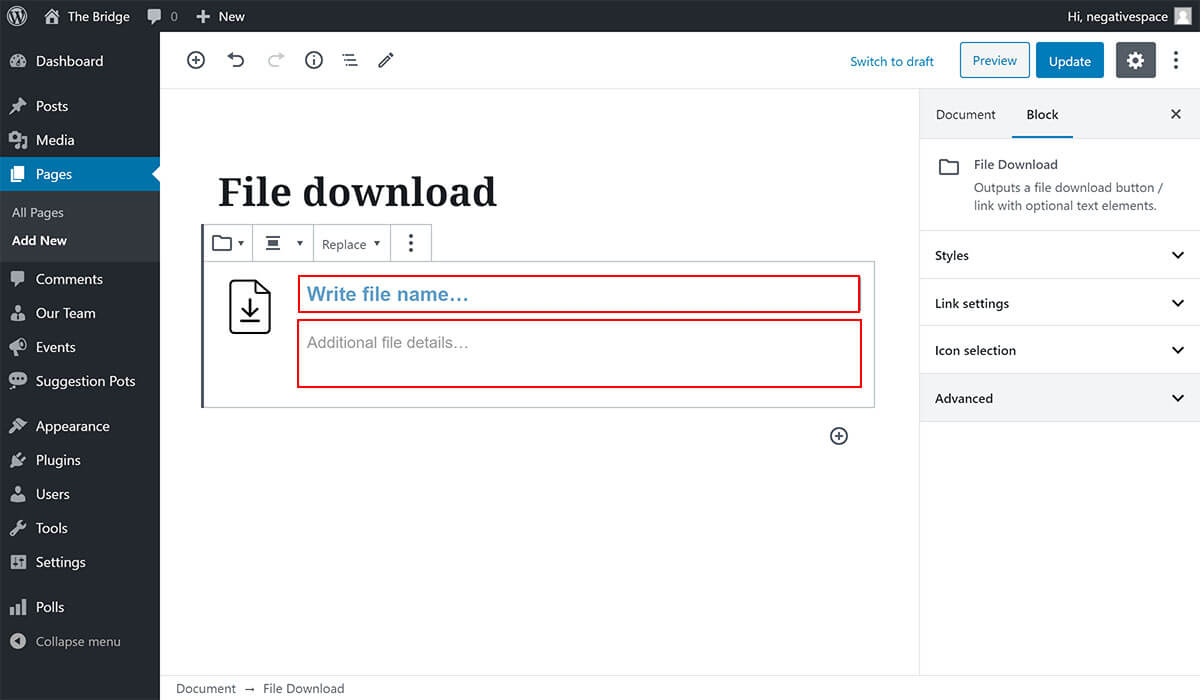
To add text to the right hand side of the download icon, simply fill in the optional title and description fields highlighted below.
# Styles
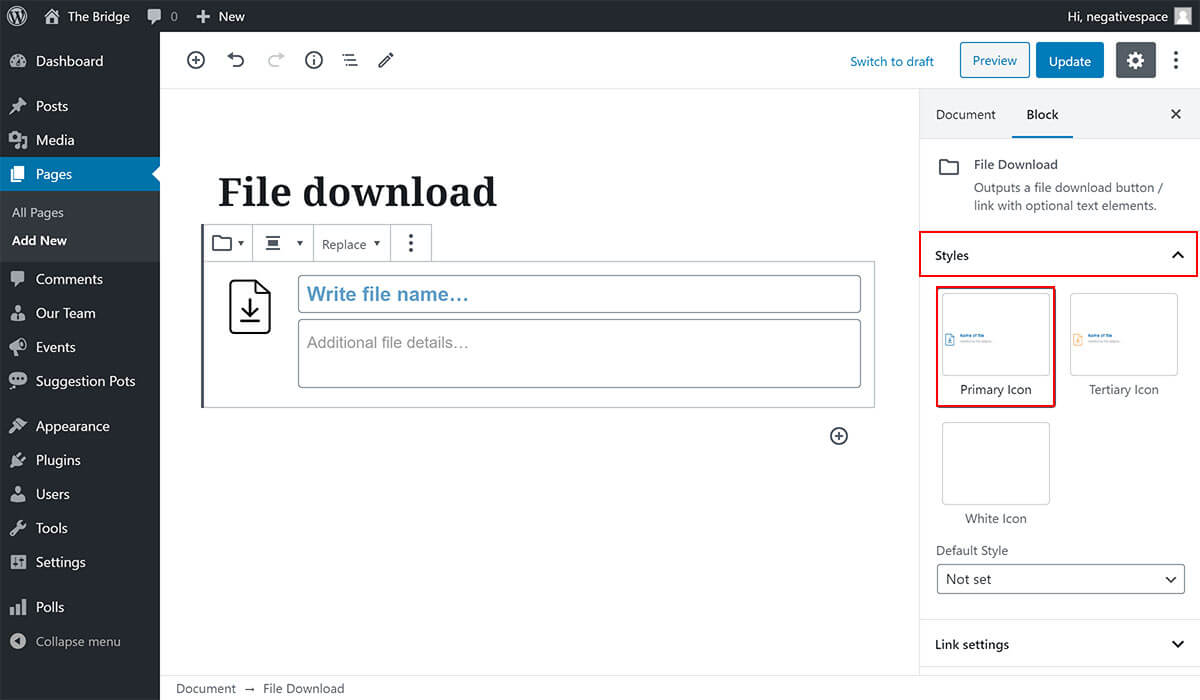
To change the colours of the block, expand the Styles dropdown (highlighted below) and choose from one of the predefined styles (e.g. Tertiary). This control is very useful when adding the block on a non white background colour (e.g. white style on top of a blue background).
# Link settings
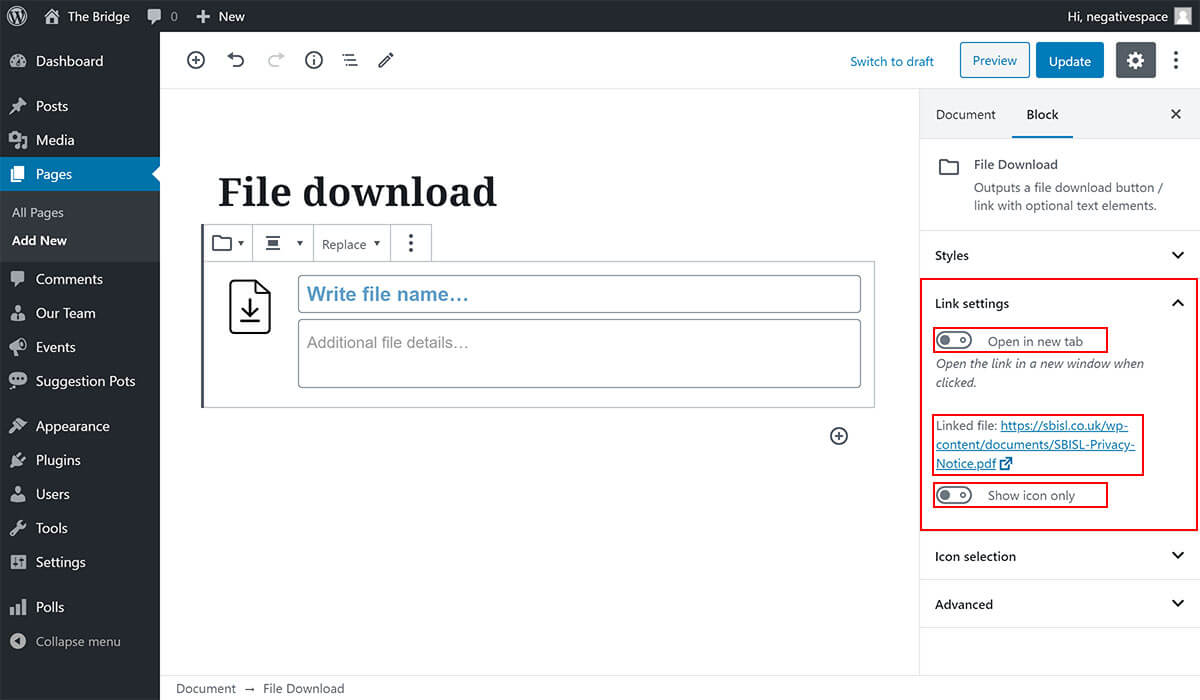
In the Link settings dropdown you can:
- Enable the Open in new tab toggle to open the file link in a new window
- See and visit the linked file
- Enable the Show icon only toggle to hide the text (title, description) and show the file download icon only
# Changing the file link
To change the file that the block is linking to, click on the Replace button (highlighted below) and choose a different file by either uploading a new one or linking to existing one from the Media Library or from a public URL.

# Aligning the block
The file download block can be aligned to the left / center / right to allow any paragraph text to wrap around it. In the example below the file download shows the icon only and is aligned to the right and as a result the paragraph text wraps around the file icon.
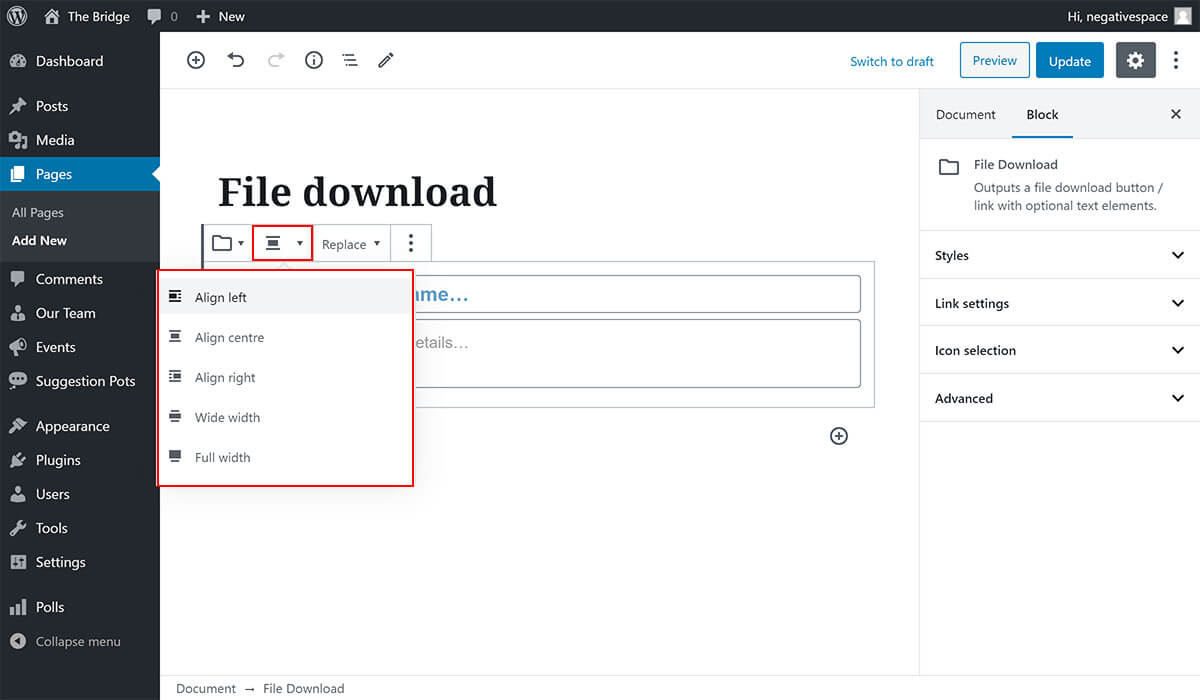
To change the block's alignment, simply click on the alignment button (highlighted below) and choose from one of the alignment options.
Note: To wrap the file icon with paragraph text the file download block will need to come before the paragraph block in the Gutenberg editor.
# Icon selection
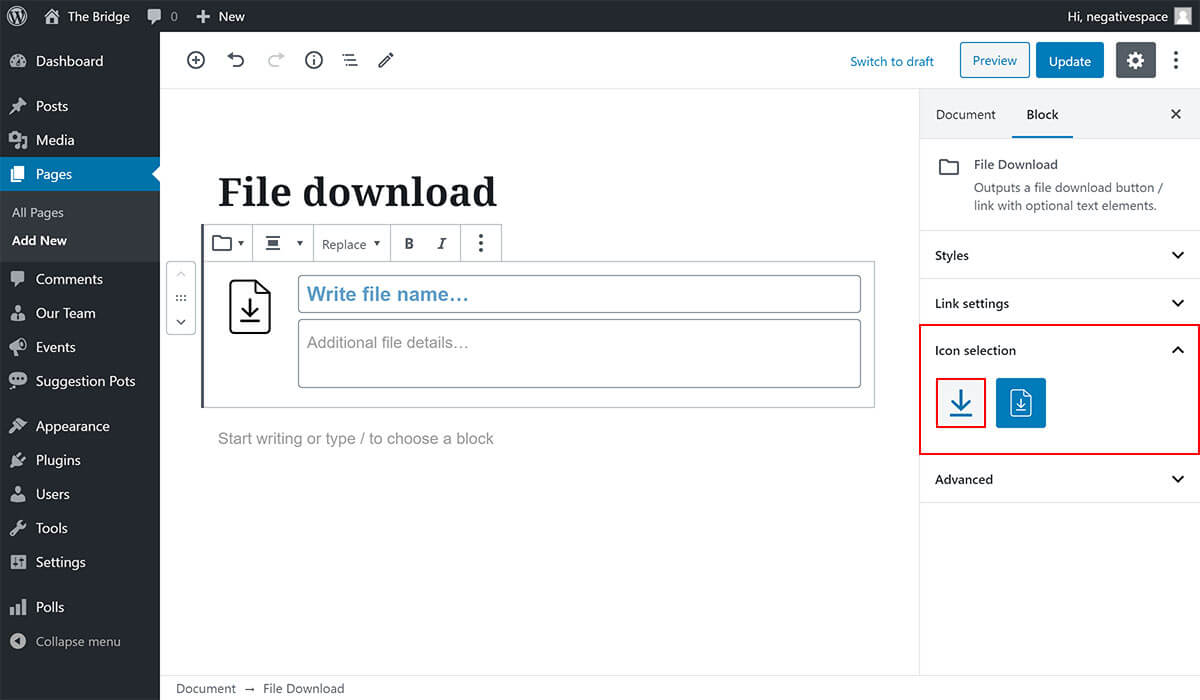
Finally, you can change the File download icon by expanding the Icon selection dropdown (highlighted below) and clicking on one of the predefined ones to select it (highlighted below).
← Events on Page Grid →