# Charities carousel
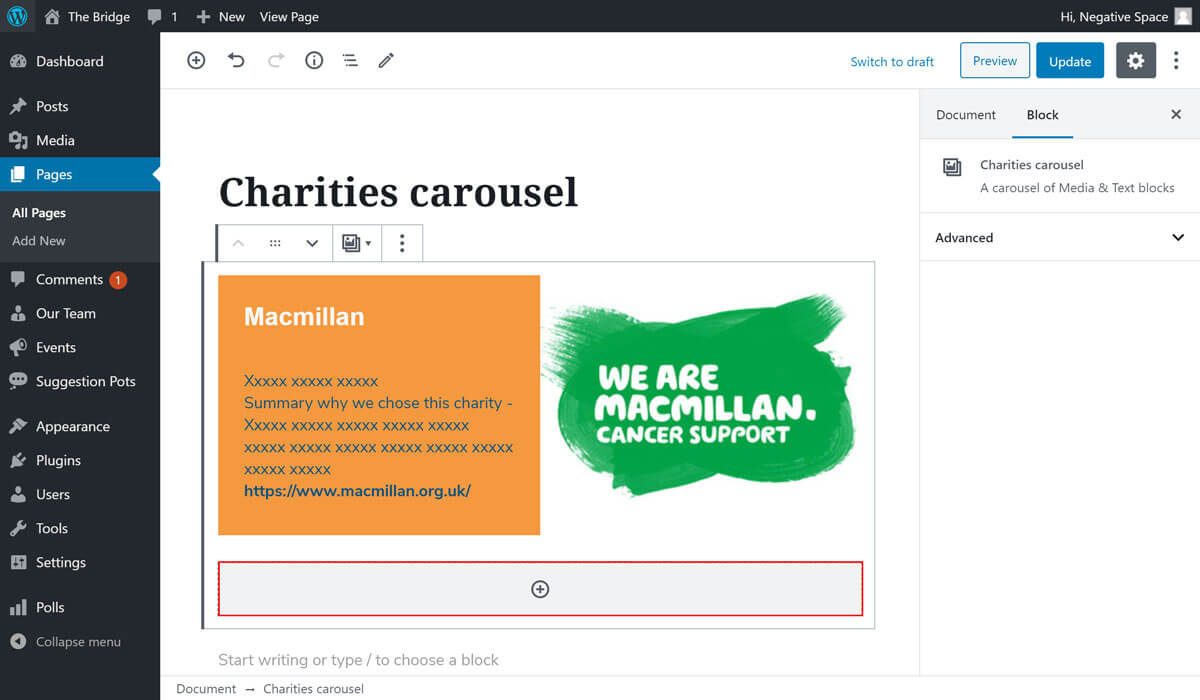
The Charities carousel block is used to display information about location specific charities (e.g. Bristol charities). As per the design, a charities carousel slide includes a charity's title, description and logo as shown below.

# Adding the block to a page
To add a Charities carousel block:
- Add or edit a page that uses the Gutenberg editor (e.g. Page or Post)
- Click to add a Gutenberg block (more on how to add a Gutenberg block can be found here)
- Find the block with the name Charities carousel (highlighted below) and,
- Click on it to add it

# Adding a carousel slide
Once you add the Charities carousel, you can start adding slides to it. To add one, simply click on the plus button in the Charities carousel block, as show below:

Once you add the slide, you should see the following configuration options:

# Configuring a carousel slide
A charities carousel slide can have the image on the left hand side and the text on the right hand side and vice versa.
To have the image on the left hand side, click on the button highlighted below. This is the option selected by default.

To have the image on the right hand side, click on the button highlighted below.

To select a logo for a charity slide you can either upload a new image (Upload button highlighted below) or use an existing one from the Media library (Media Library button highlighted below).

Once you select an image, you can set it to take the full height of the slide by checking the option Crop image to fill entire column under the Media & Text settings dropdown as highlighted below.

To add text to a charity slide, simply click on the Content... text highlighted below and start adding content blocks (e.g. headings, paragraph, buttons).

To add a background colour to the charity slide, expand the Colour settings dropdown (highlighted below) and select a colour from the ones predefined by the theme.

# Configuration tips
When adding text content to a charity slide the editor will default to a paragraph block. You can swap that block for another block (e.g. heading) using the control highlighted below.

When using a heading block, you can select the level of that heading (1-6) and its colour as highlighted below.

When using a paragraph block, you can set the text's colour by expanding the Colour settings dropdown and selecting a colour from the ones predefined by the theme as highlighted below.

To add a slide to the carousel after configuring one, simply click on the plus button highlighted below.